If you work with Word documents all day—proposals, reports, contracts, SOPs—you’ve probably run into this pattern:
- Attach a
.docxfile to an email or chat - Hope it isn’t too big to send
- Hope the other person has the right app
- Deal with “Can you resend?” or “I can’t open this” messages
Most of the time, you don’t need a complex collaboration system. You just need a simple, reliable link that delivers your Word file.
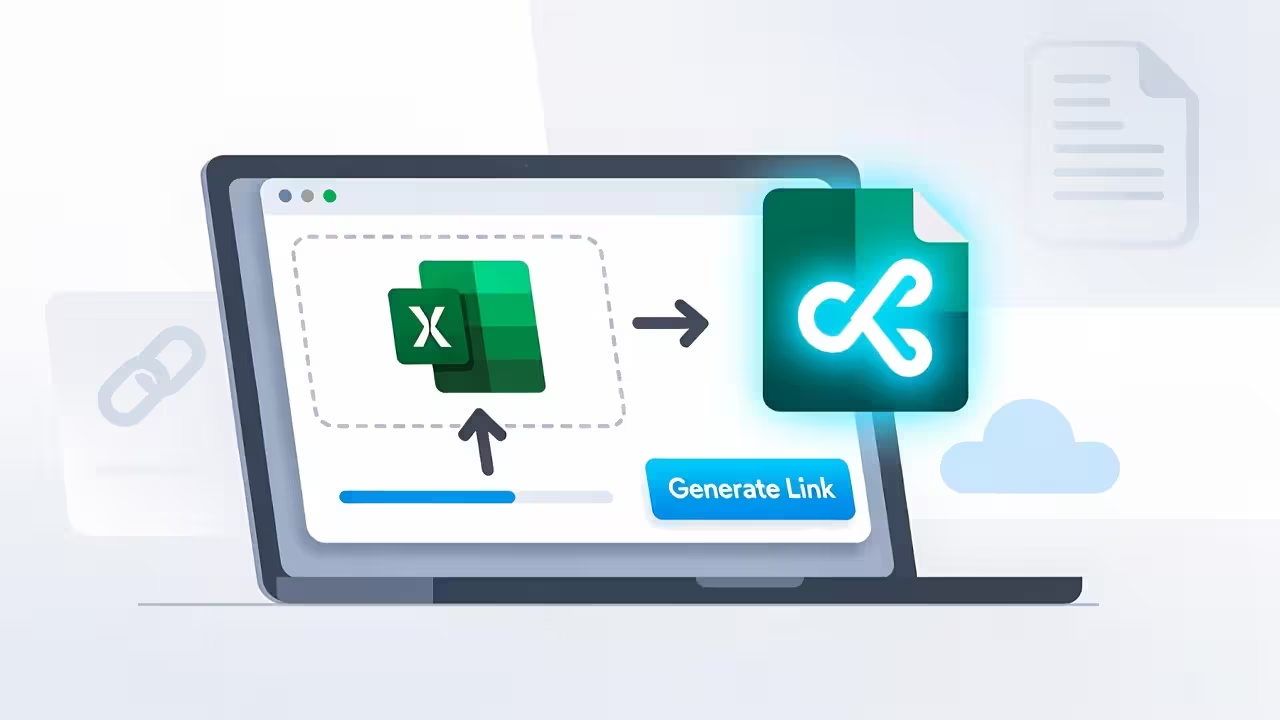
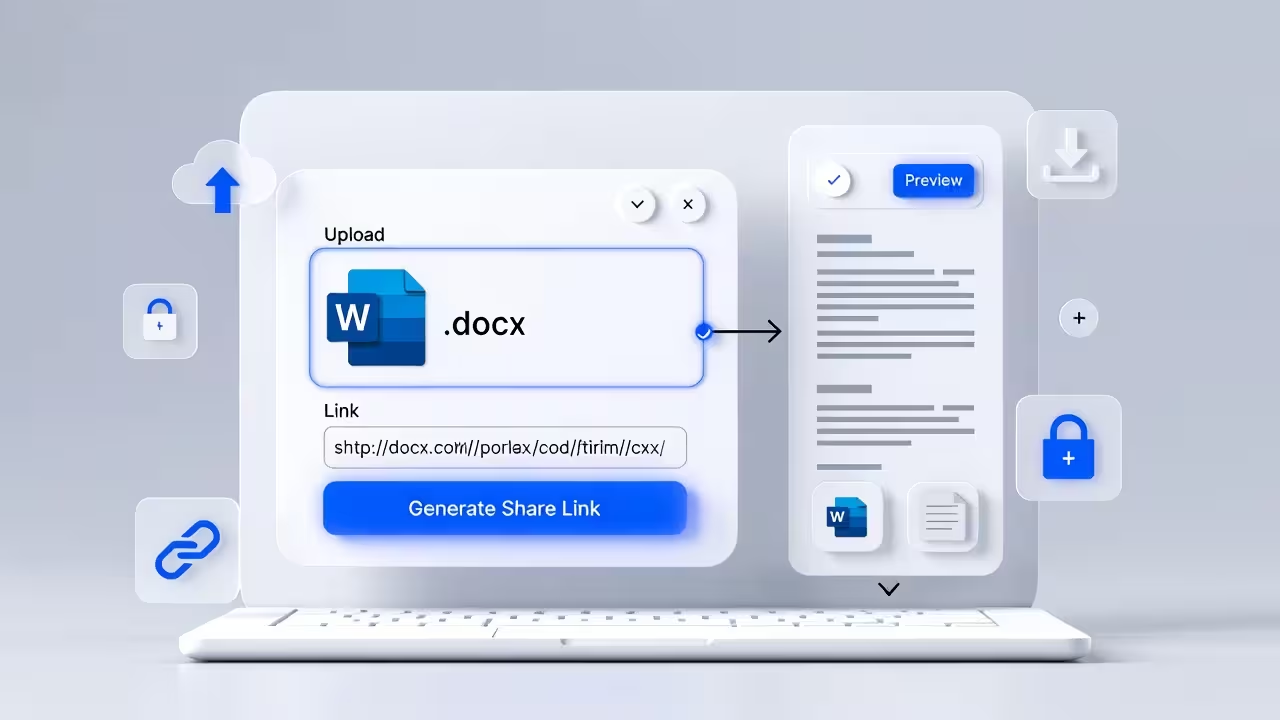
With FileXhost, you can upload a Word document (.doc or .docx) and get a shareable link on a filex.host subdomain. Your recipient clicks the link and downloads the document in one step—no sign-ins, no permissions, no guesswork.
Share Your Word Document as a Link
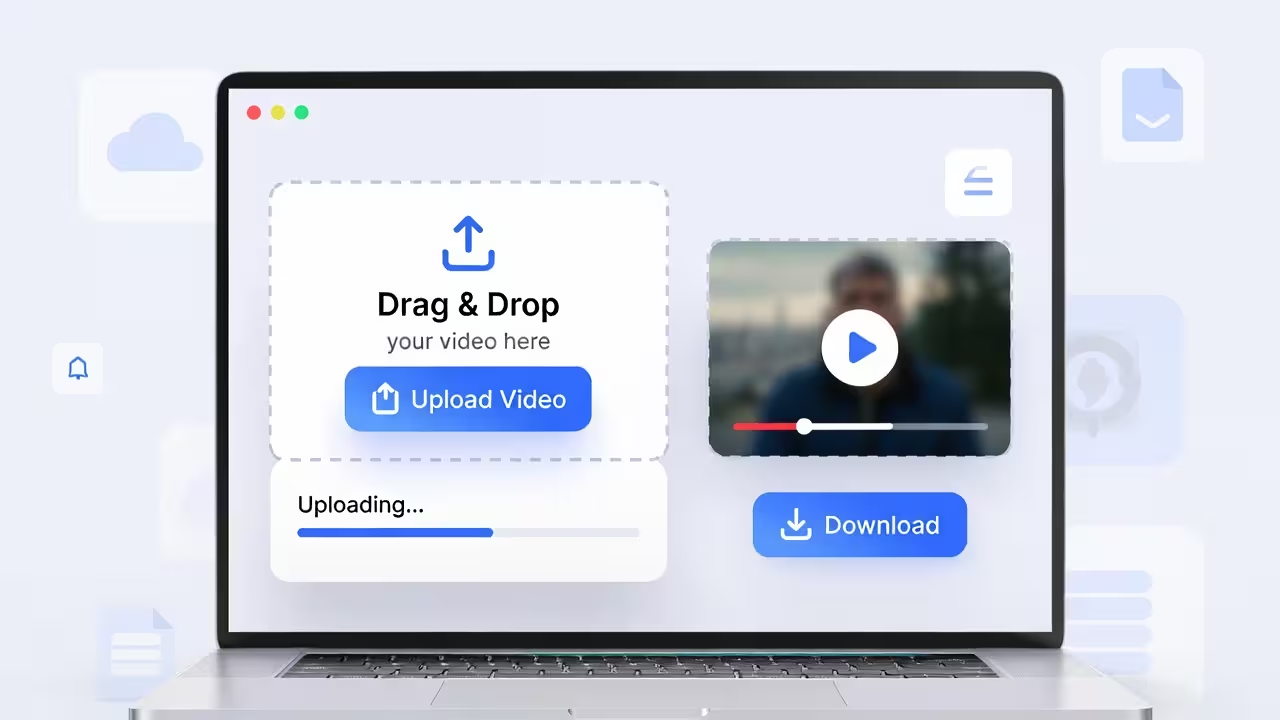
Drag and drop any file (images, videos, PDFs, or HTML) and get a live link in seconds. No sign-up required.
Quick Answer
- Upload your Word document (
.docor.docx) to FileXhost. - Copy the generated link on
*.filex.host. - Share that link anywhere—email, chat, or your internal docs.
When someone opens the link, they land on a clean file page with a clear download option. Their browser or device then opens the Word file with whatever app they use (Microsoft Word, Apple Pages, Google Docs, etc.).
How FileXhost Handles Word Documents
FileXhost is built as a file hosting and preview platform. Some formats (like PDF, RTF, text, spreadsheets, images, ZIPs, and videos) open in rich viewers directly in the browser.
Word formats (.doc and .docx) are handled slightly differently:
- FileXhost recognizes Word files and shows a document-style icon so people know what they’re downloading.
- The shared page gives a clear button to download the original file.
- The actual viewing or editing happens in the recipient’s preferred app (Word, Pages, Google Docs, etc.).
This keeps the experience simple and avoids compatibility hacks. FileXhost focuses on:
- Giving you a short, clean link
- Keeping the original file intact
- Making it easy to add that link wherever you need it
If you want a built-in reader for the content itself, you can export to PDF or RTF and host that version too—FileXhost has dedicated viewers for those formats alongside your Word files.
Why Use a Link Instead of an Attachment
Sending Word documents as attachments seems convenient, but it has real downsides:
- Attachments can get blocked or clipped by email providers.
- Files get lost in long threads and are hard to find later.
- People open the wrong version if you’ve sent multiple iterations.
- Some recipients open email on their phone and don’t want to download large files.
With a FileXhost link:
- You send one URL instead of multiple attachments.
- The link is easy to paste into tickets, docs, or chats.
- People can download the document when they’re ready, on any device.
It’s especially useful for documents that you share repeatedly: templates, SOPs, onboarding guides, service descriptions, or legal docs.
Step-by-Step: Share a Word Document as a Link
Here’s the exact flow using FileXhost:
- Open FileXhost.
- Upload your Word file. Drag and drop your
.docor.docxfile into the uploader. - Wait a moment while the file is stored and processed.
- Copy the generated link on your
*.filex.hostsubdomain. - Share that link in:
- Emails
- Slack/Teams/Discord
- Notion, Confluence, or internal wikis
- Project management tools like Jira or Linear
Your recipients click the link, see the document page, and download the file. From there, their device takes over and opens it in the correct app.
What Your Recipients Experience
When someone opens your FileXhost link to a Word document, they see:
- A simple page with the document name and size
- A download control to grab the original
.docor.docx - A clean layout that works on desktop and mobile
From there:
- Desktop users open the file in Word, Pages, LibreOffice, or Google Docs.
- Mobile users can open it with their phone’s Office app or save it to a documents folder.
FileXhost doesn’t try to replace Word. It focuses on clean delivery, so the file always arrives intact and easy to open.
Tip: Combine Word with Supporting Files
Very often, a Word document is just one part of what you need to send. You might also have:
- Brand assets (logos, images)
- Reference PDFs
- Spreadsheets with supporting data
- Screenshots or mockups
FileXhost is built to handle this case well. You can:
- Host your Word document alongside related PDFs, images, and Excel files behind the same site.
- Or, if you package multiple files into a ZIP, FileXhost’s ZIP viewer lets people see all included files and selectively download what they need.
This is especially useful for:
- Client handovers (contracts plus assets)
- Proposal bundles (Word + PDF summaries + slide decks)
- Internal project documentation (Word docs plus data exports)
When to Export Word to PDF or RTF
If your main goal is for people to read the content instead of editing it, consider exporting your Word file and hosting an additional format alongside it:
- PDF for a polished, print-ready view. FileXhost has a dedicated PDF viewer where people can read online and download.
- RTF or TXT if you need a simple, lightweight text view. FileXhost provides clean readers for both.
A simple pattern that works well:
- Keep your original
.docxas the source of truth. - Export a PDF version for easy viewing.
- Upload both to FileXhost and share links accordingly:
- PDF link for “just read this”
- Word link for “download and edit this”
That way, each person can use the format that fits their workflow.
Where to Share Your Word Document Link
Once you have your filex.host URL, you can drop it almost anywhere you’d normally email an attachment:
- Email: “Download the latest proposal: https://yourname.filex.host/…”
- Chat apps: Slack, Microsoft Teams, WhatsApp, Telegram.
- Internal docs: Link from Notion, Confluence, or your internal knowledge base.
- Issue trackers: Attach the link to Jira, Linear, or GitHub issues.
- Client portals: Add the link to onboarding checklists or account pages.
For public-facing sites or blogs, you can link a button directly to your FileXhost URL:
<a href="https://project.filex.host" target="_blank" rel="noopener">
  Download the Word document
</a>
FileXhost vs. Drive Links for Word Files
Cloud drives are useful for collaboration and storage, but they come with friction when you just want to send a document:
- Links may require sign-ins or be restricted to certain organizations.
- Preview behavior can vary by device and browser.
- URLs are often long and noisy.
FileXhost is designed for public, frictionless sharing:
- No viewer login or access request flow.
- A short, readable link on a
filex.hostsubdomain. - Clear download options so people can get the original Word file.
Keep your working copies wherever your team prefers. Use FileXhost when you want a clean, external-facing link for readers and clients.
Frequently Asked Questions
Can people edit my Word document directly in FileXhost?
No. FileXhost focuses on hosting and delivering files. Recipients download the .doc or .docx and edit it in their own apps, like Word or Google Docs.
Does FileXhost change or convert my Word files?
No. The document you upload is the document your recipients download. There’s no automatic conversion or reformatting.
Can I preview a Word document in the browser?
FileXhost itself does not render .doc or .docx as a full in-browser editor. Most users download the file and open it in their preferred app. For a web-based reading experience, export to PDF or RTF and host that version with FileXhost as well.
Can I share multiple Word documents in one place?
Yes. You can upload multiple documents and related files and host them under the same FileXhost site, or bundle them into a ZIP. The ZIP viewer lets recipients see each file and download them individually or all at once.
Is the link public?
A FileXhost link is accessible to anyone who has it. That’s what makes it ideal for frictionless sharing in emails, tickets, and documentation. If the document is sensitive, share the link only with trusted people or rotate to a new link if you need to revoke access.
Wrap-Up
Sharing a Word document shouldn’t involve wrestling with attachments, bounced emails, or permissions screens. With FileXhost, you:
- Upload your
.docor.docxonce - Get a clean, stable link on
filex.host - Let people download the file in a couple of clicks
If you want a polished reading experience alongside the editable file, pair your Word document with a hosted PDF or RTF version. Together, they give you the best of both worlds: easy reading for most people and easy editing for those who need to work in Word.