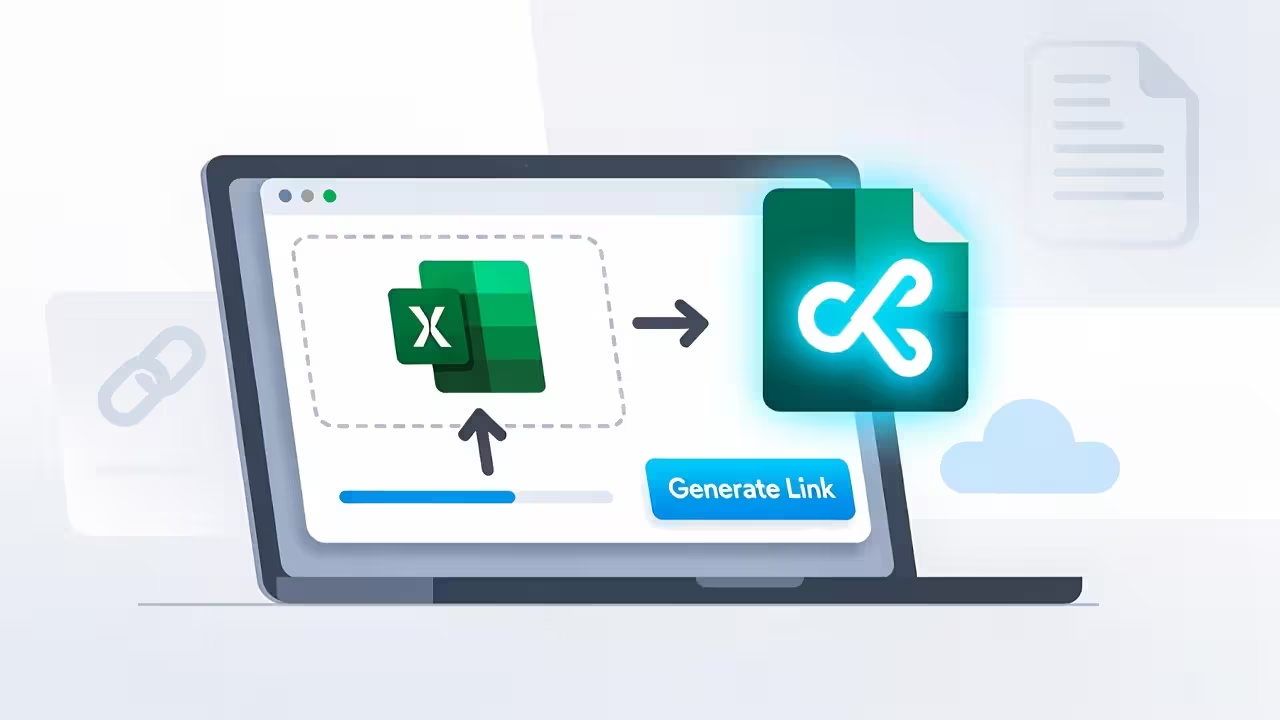
You know that moment when someone says, “Can you send me the spreadsheet?” and you immediately picture the dance that follows—upload to a cloud drive, tweak permissions, send a long link, someone still can’t open it, and a “request access” email lands in your inbox at 2am. Let’s not do that again.
If all you need is a simple, public link to your Excel sheet—something that opens quickly, looks good on mobile, and lets people download if they want—this guide is for you.
With FileXhost, you can turn an Excel file (.xlsx/.xls) into a clean URL in seconds. No complicated sharing settings. No sign-in required for viewers. Just a short link you can paste into email, chat, or your website.
Share Your Sheet in Seconds
Drag and drop any file (images, videos, PDFs, or HTML) and get a live link in seconds. No sign-up required.
What “Sharing as a Link” Actually Means
When you share an Excel sheet as a link with FileXhost, your file is hosted on a filex.host subdomain (for example, yourname.filex.host). That link:
- Opens a fast, dedicated spreadsheet viewer so people can browse the data immediately.
- Lets viewers download the original file if they prefer opening it in Excel.
- Works on desktops, tablets, and phones without plugins.
It’s purpose-built for frictionless viewing and fast sharing—perfect for price lists, brochures, event rosters, small dashboards, or any spreadsheet that needs to be seen quickly by anyone.
Why Not Just Email the File?
Attachments get messy quickly:
- People can’t preview on the go without downloading first.
- Multiple versions float around—“final_v7.xlsx” becomes “final_final(5).xlsx”.
- Large attachments bounce or get clipped.
A link avoids all of that. You send one URL, and everyone sees the same source of truth. They can skim it in the browser or download the original if needed.
The Two‑Minute Method
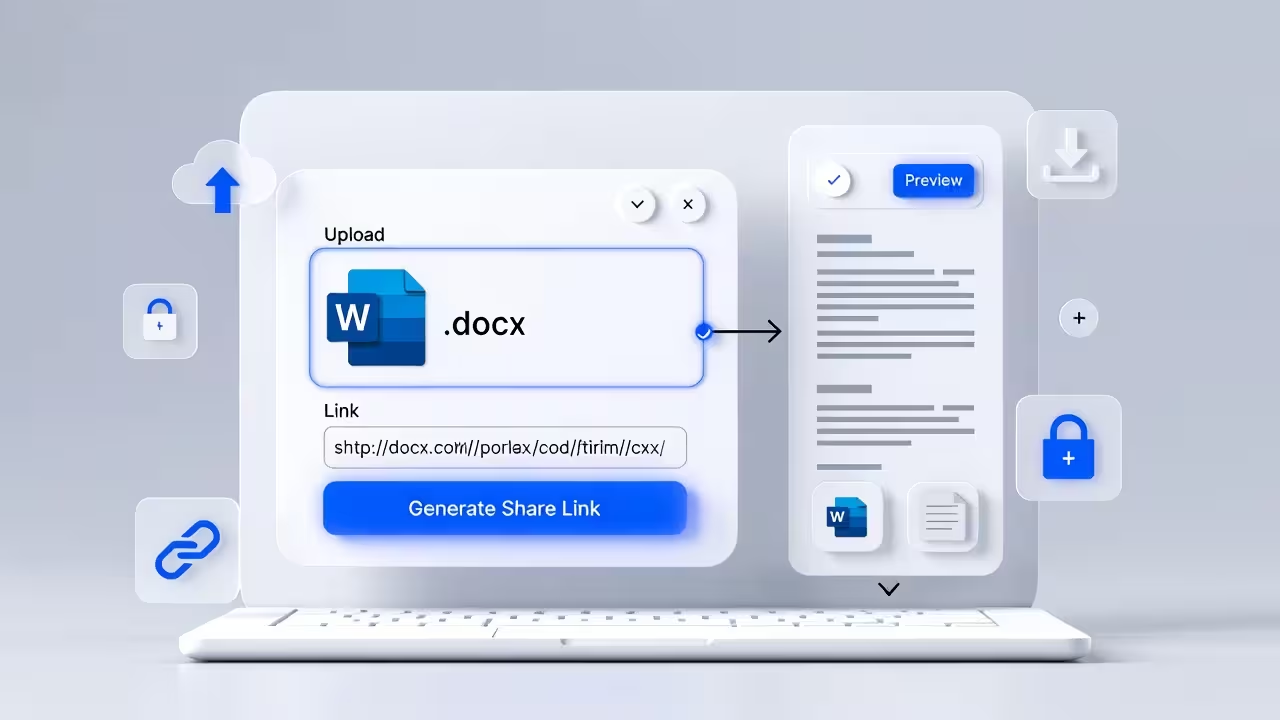
Here’s the entire process from zero to link:
- Open FileXhost.
- Upload your
.xlsxor.xls. - Copy your link on
*.filex.host. - Share it anywhere—email, Slack, LinkedIn, your website.
That really is it. No project setup, no git pushes, no permission toggles.
What Viewers See on the Other End
FileXhost is a file hosting and preview platform. For spreadsheets, it uses a modern, fast table viewer that opens your data in the browser. A few things your recipients will appreciate:
- The spreadsheet renders quickly, even on mid‑range phones.
- Columns are sized sensibly and can be resized in the interface.
- It handles multi‑sheet files gracefully (the first sheet opens; others are accessible if present).
- There’s a clear option to download the original file.
It’s the kind of low‑friction viewing experience you wish every shared spreadsheet had.
Formatting Tips Before You Share
You don’t need to overhaul your file, but a few small tweaks can make your sheet easier to read online:
- Put a clear header row in each sheet. Use short, descriptive labels.
- Avoid excessive merged cells—they look fine in Excel but can feel cramped in the browser.
- Keep numbers readable: pick a standard number format (e.g., 1,234.56) and stick to it.
- Make dates consistent—choose one format your audience expects.
- Trim sheets you don’t need to share; show only the tabs that matter.
If the file is massive, consider splitting a “summary” sheet for the public link and keep the heavy analysis in a separate workbook for your team.
When CSV Is Better (and When It’s Not)
FileXhost also supports CSV. If your audience doesn’t need formulas and you want maximum compatibility and speed, a CSV exports beautifully:
- Opens quickly in the viewer.
- Works great for static datasets like catalogs or public datasets.
Stick with Excel (.xlsx) if your recipients might download and work with formulas or multiple tabs.
Make the Link Easy to Use
Once you’ve got your FileXhost URL, place it where people expect to find it:
- Email: “View the spreadsheet: https://yourname.filex.host”
- Docs and Notion: Add it as a “View sheet” external link.
- Websites and blogs: Link the call‑to‑action button to your FileXhost URL.
Here’s a simple HTML snippet for websites:
<a href="https://project.filex.host" target="_blank" rel="noopener">
  View the spreadsheet
  <span aria-hidden="true">↗</span>
</a>
Privacy and Access Expectations
A shared link is public to anyone who has it. That’s the point—no logins, no “request access” dance. If you need private distribution, share the link only within your trusted circles or use a different workflow designed for permissioned access.
If you later need to remove access, you can replace or delete the hosted file and share an updated link.
Real‑World Uses That Work Well
- Sales teams sharing a pricing sheet with partners.
- Job seekers linking to a skills matrix or project tracker from a resume.
- Event organizers posting a volunteer roster or session schedule.
- Agencies publishing deliverable lists or content calendars for clients.
- Educators sharing graded rubrics or reading lists that students can download.
If someone needs a quick look without the fuss, the link delivers.
Troubleshooting (Quick Fixes)
- “Numbers look odd” → Re‑export with consistent number formatting.
- “Too wide on mobile” → Shorten header labels; avoid extremely long column names.
- “Can I search?” → Use your browser’s find (Cmd/Ctrl+F) to jump to rows quickly, or create a temporary “index” column with keywords.
- “File’s too big to email” → That’s exactly why the link is better—keep it hosted and share the URL.
- “Do I need Excel installed?” → No. The viewer works in the browser; download is optional.
Comparing to Cloud Drives
Cloud drives are great storage. But for public, frictionless viewing, they add hurdles:
- Viewers often face login prompts or organization locks.
- Links are long and cluttered.
- Previews vary by device and browser.
With FileXhost, the viewer is the point: fast to open, easy to read, and a single clean link you can reuse everywhere.
Mini Checklist Before You Share
- Descriptive file name (e.g.,
pricing-2026.xlsx). - Header row with clear labels.
- Only the sheets your audience needs.
- Numbers and dates formatted consistently.
- Optional: Add a “Read Me” sheet with context at the front.
Frequently Asked Questions
Can people edit my spreadsheet online?
No. The viewer is for reading and downloading. If you need collaboration, keep your working copy in your preferred editor; use FileXhost for public viewing and sharing.
Does the link expire?
It’s designed to be a stable link you can keep using. If you need to update data, simply upload a new version and share the same or a new link.
Can I post multiple spreadsheets?
Yes. Each upload gets its own link. For collections, create a simple HTML index page with links to each sheet and host that single HTML file with FileXhost.
Is it mobile‑friendly?
Yes. The viewer is optimized for phones and tablets, with responsive layout and horizontal scrolling when columns get wide.
What file types work best?
.xlsx and .xls are ideal. CSV is great for static datasets and fastest loading; Excel is best if recipients might download and retain formulas or multiple tabs.
Wrap‑Up
Sharing a spreadsheet shouldn’t mean wrestling with permissions or juggling email attachments. If your goal is to let people view data right now—on any device—and download the original file if they want it, a simple public link is the most reliable path.
With FileXhost, you upload once, copy the clean URL, and move on with your day. No setup, no access requests, no “final_v12.xlsx” threads. Just the data, live and easy to share.