If you’ve ever tried to send a file with Google Drive and ended up in “request access” hell, you’re not alone.
You share a link. Someone doesn’t have the right account. Another person is on mobile. Permissions are locked to your organization. Now you’re juggling settings like “Anyone with the link can view”, “Restricted”, “Viewer”, “Commenter”… when all you wanted was a simple way to send a file.
The good news: you don’t need Google Drive at all to send a file.
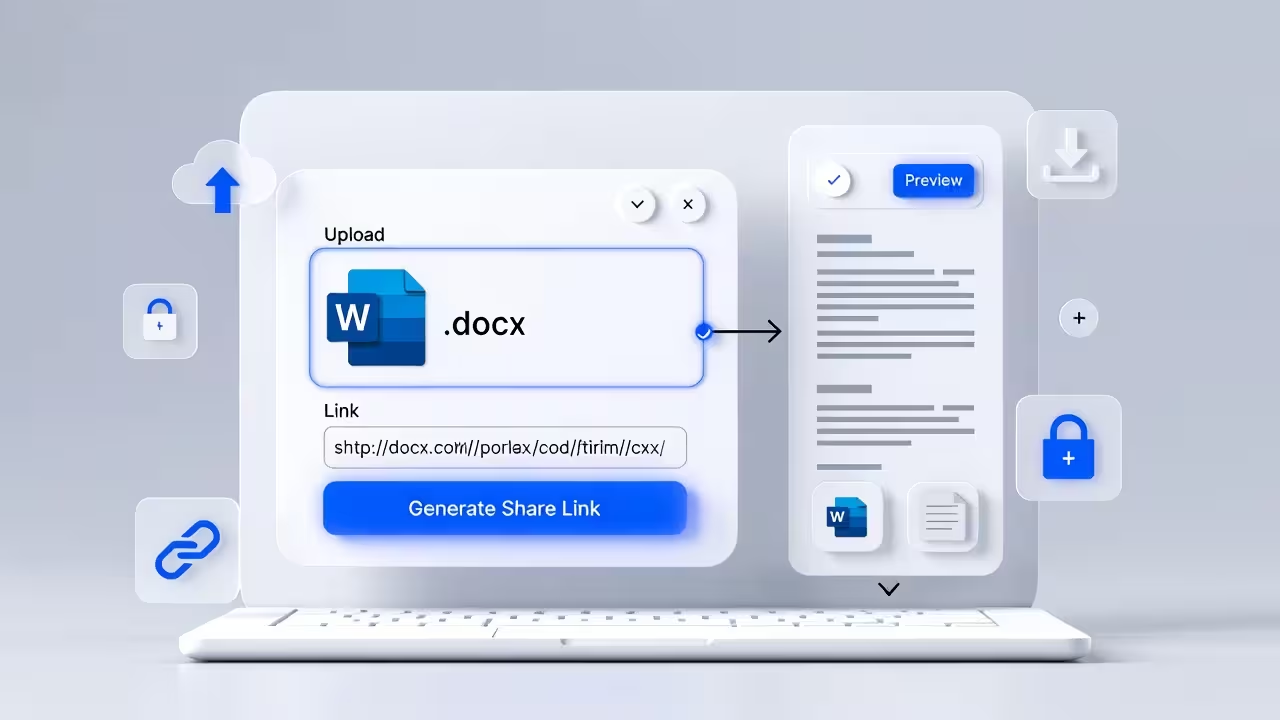
With FileXhost, you can upload a file, get a clean URL on a filex.host subdomain, and share that link anywhere. Viewers don’t need an account, and for many formats they get an in‑browser preview plus a download button.
Send Your File Without Google Drive
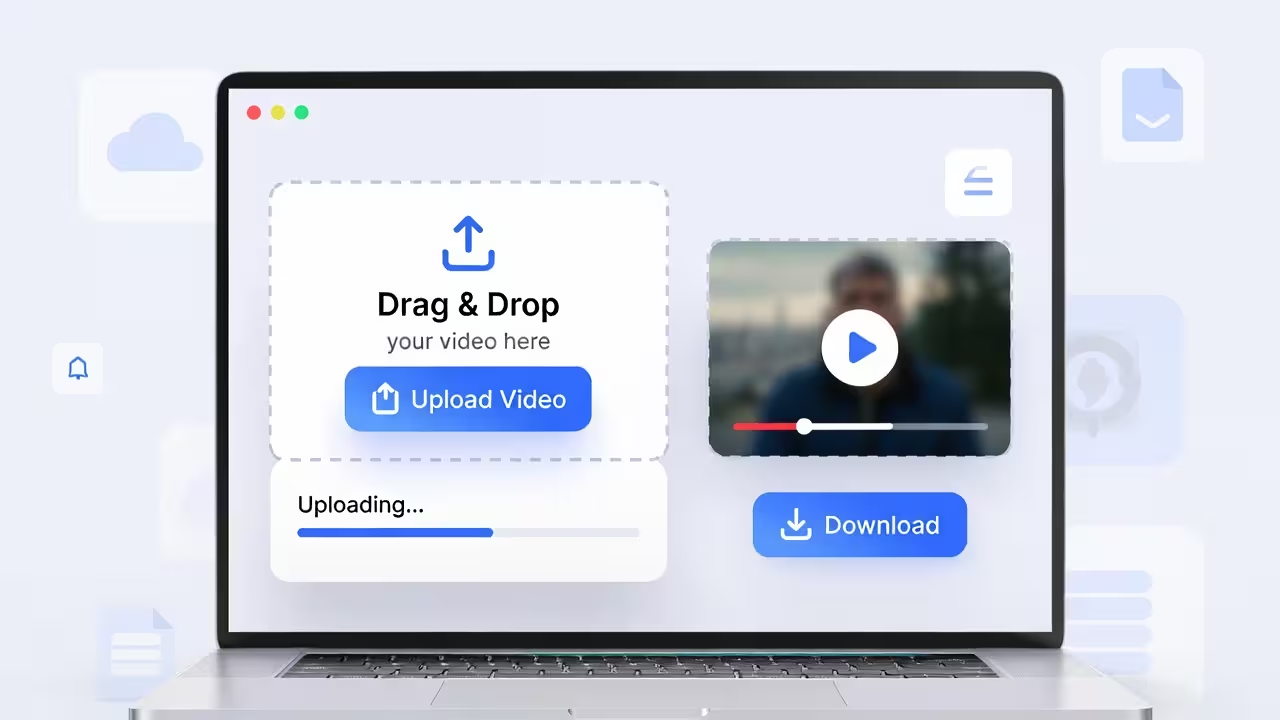
Drag and drop any file (images, videos, PDFs, or HTML) and get a live link in seconds. No sign-up required.
Quick Answer
- Upload your file to FileXhost.
- Copy the generated link (it lives on a
filex.hostsubdomain). - Share that link in email, chat, or docs.
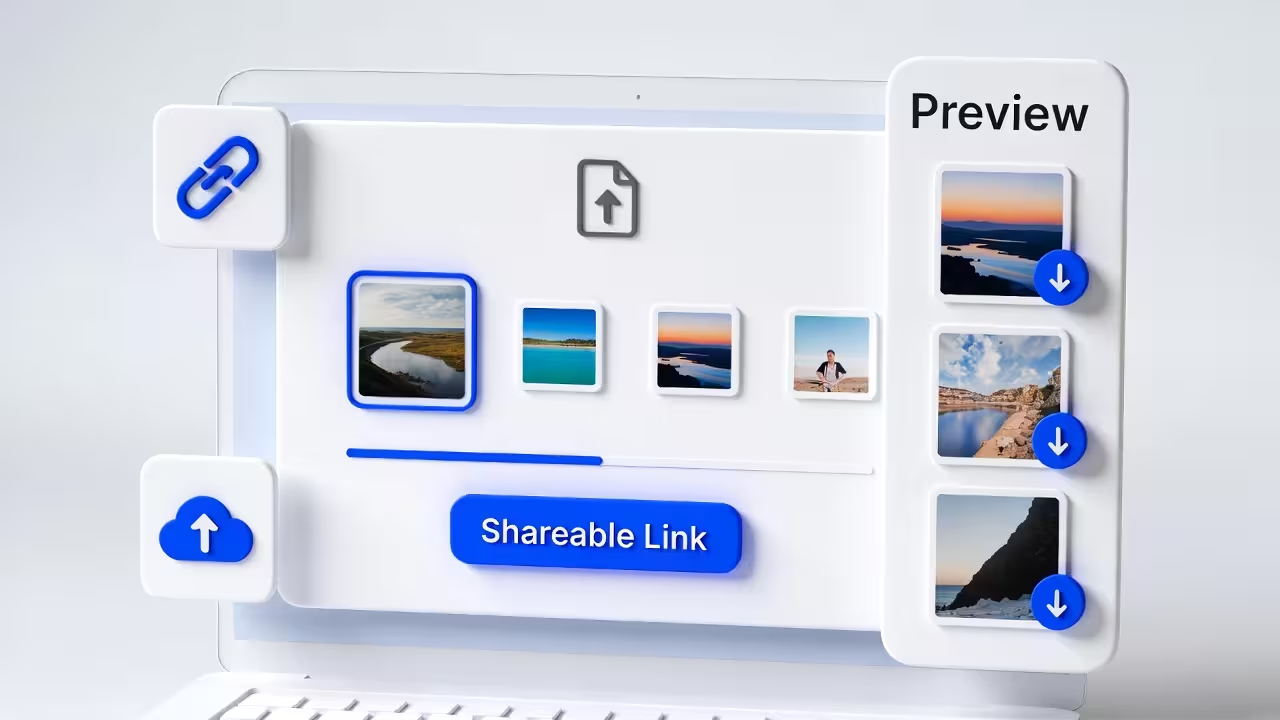
Recipients open the link, preview supported files in the browser (PDF, images, spreadsheets, ZIPs, videos, text, and more), and download if they want a local copy.
Why Avoid Google Drive for Simple File Sharing
Google Drive is great for storage and collaboration inside a team, but it’s overkill for one‑off file sharing. Common pain points:
- Permissions friction: People hit a “Request access” screen or are told they need to switch accounts.
- Organization locks: External clients or partners can’t open internal drive links.
- Cluttered UI: The Drive interface adds buttons, menus, and distractions you don’t need for a single file.
- Account dependence: Viewers are tied to Google accounts and a specific email identity.
If all you want is:
- A public, copy‑pasteable link
- That opens a file viewer or download page
- Without sign‑ins or permission tweaking
…then a focused file hosting link is a better fit.
How FileXhost Sends Files Without Drive
FileXhost is built specifically for fast file hosting and previewing. When you upload a file:
- It is stored on FileXhost and linked to a site on a
filex.hostsubdomain. - You get a shareable URL like
https://yourname.filex.host. - When someone opens that URL, they see a viewer page or download page depending on file type.
FileXhost supports rich previews for:
- Documents: PDF, RTF, plain text.
- Data files: XLSX/XLS, CSV, JSON with an in‑browser table viewer.
- Images: JPG, PNG, WEBP, plus extended formats like HEIC/HEIF and TIFF.
- Media: MP4 video and common audio formats.
- Archives: ZIP files with a gallery/list viewer where people can see contents and download individual files or the full ZIP.
- Code & structured text: JSON and other text formats with readable layouts.
For other file types, FileXhost falls back to a clean download page so recipients can grab the original file and open it with their own apps.
The core idea: keep the sharing flow simple—one URL, clear actions, no account walls.
Step-by-Step: Send a File Without Google Drive
Here’s how to move your “Can you send me that file?” workflow off Drive:
- Open FileXhost.
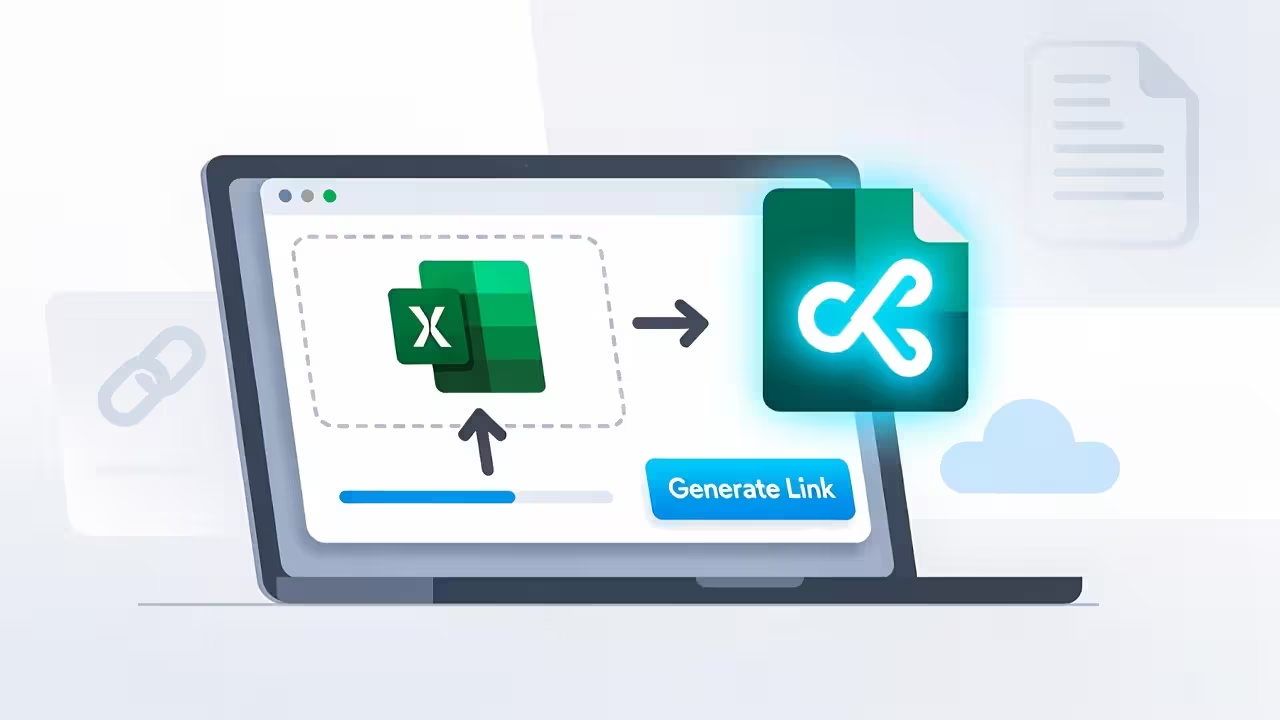
- Upload your file (or multiple files). Drag and drop from your desktop into the uploader.
- Wait a moment for processing. If the file type supports direct viewing, FileXhost wires it up to the appropriate viewer.
- Copy your generated
*.filex.hostlink. - Paste that link into:
- Emails
- Slack/Discord/Teams chats
- Notion or Confluence pages
- Tickets in Jira, Linear, GitHub, etc.
That’s it. No folder structures, no permission dropdowns, no “make a copy” button.
What Your Recipient Sees
When someone opens your FileXhost link, they get a focused page for that site:
- For previewable formats (PDF, images, spreadsheets, videos, ZIPs, etc.), they see a viewer interface built for that file type.
- For non‑preview formats, they see a clear download option.
- The layout is responsive, so it works on phones, tablets, and desktops.
They don’t need:
- A Google account
- Admin access or special roles
- Any prior setup
They just open the link and interact with the file.
Sending Multiple Files Without Drive
Drive is often used as a “dumping ground” for sets of files—photo batches, deliverable bundles, resource packs. FileXhost handles this use case cleanly in two ways.
Option 1: Upload files individually under one site
You can attach multiple files to a single FileXhost site so that:
- The site’s link acts as a hub for related files.
- Previewable files open in their viewers; others are available for download.
This is great when:
- You want clients to see a few key assets (e.g., final images, a PDF summary, an Excel price list).
- Each file benefits from its own viewer (image viewer, PDF viewer, table viewer, ZIP viewer).
Option 2: Use a ZIP for full bundles
If your goal is “Here’s everything, grab it all,” bundle files into a ZIP and upload that ZIP to FileXhost.
FileXhost’s ZIP viewer lets your recipients:
- See a list or grid of files inside the ZIP.
- Preview supported files (like images and documents) directly.
- Download:
- A single file from the ZIP, or
- The entire archive in one click.
This combines the convenience of ZIP attachments with the clarity of a web viewer, no Drive needed.
Adding Simple Password Protection (Optional)
Sometimes you want more control than “anyone with the link” but don’t want to manage complex Drive permissions.
FileXhost supports:
- Password‑protected sites: Add a site password so visitors must enter it before accessing content.
- Password‑protected PDFs: If you upload a PDF that’s already encrypted with a password, the browser’s PDF viewer will prompt for that password before displaying it.
You can combine these layers:
- Gate the site with a site password.
- Optionally use document‑level passwords for especially sensitive PDFs.
- Share:
- The link in one channel (e.g., email).
- The password(s) in another (e.g., chat or SMS).
This gives you Drive‑level control without tying anything to Google accounts.
When FileXhost Beats Email Attachments
You might be thinking, “Why not just attach the file to an email and skip links altogether?”
Attachments break down when:
- The file is too large and gets bounced or clipped.
- You want people to preview before downloading.
- Multiple versions start flying around (“final-v3”, “final-final”, etc.).
- Some recipients primarily use mobile email clients with limited attachment handling.
With a FileXhost link:
- You send one stable URL.
- Everyone sees the same source of truth.
- People on any device can preview first, download second.
- You can update or replace the hosted content while keeping the same link pattern.
Where to Use Your Non‑Drive Link
Once you have your FileXhost URL, you can drop it into almost any workflow:
- Email: “View/download the file here: https://yourname.filex.host/…”
- Chat: Slack, Discord, WhatsApp, Telegram.
- Docs: Link from Notion, Confluence, or internal wikis.
- Support & handovers: Add to onboarding checklists, project wrap‑ups, and support articles.
On a website or blog, you can link a button directly to your FileXhost URL:
<a href="https://project.filex.host" target="_blank" rel="noopener">
  Download the file
</a>
FileXhost vs. Google Drive at a Glance
Google Drive
- Designed for storage and collaboration.
- Tied heavily to Google accounts and organizations.
- Involves permission management and sometimes confusing access errors.
FileXhost
- Designed for public, frictionless sharing.
- Gives you a clean link that anyone with the URL can open.
- Provides dedicated viewers for many file types and simple download pages for the rest.
You can absolutely keep using Drive internally. FileXhost shines when you need to send a file to clients, partners, or users without asking them to wrestle with login dialogs.
Frequently Asked Questions
Do viewers need an account to open the link?
No. FileXhost is built for no‑login viewing. Anyone with the link can open the page and, depending on the configuration, view or download the file.
Can I share really large files?
FileXhost is designed to handle real‑world file sizes for documents, images, spreadsheets, and archives. For extremely large assets, consider compressing or splitting them logically before upload to keep the experience smooth for recipients.
Can I revoke access later?
If you want to stop sharing, you can update or remove the hosted content and share a new link. Since access is link‑based, changing where that link points (or removing the file) effectively removes public access.
Is this only for PDFs?
No. FileXhost supports a broad range of file types: PDFs, spreadsheets, images (including HEIC/HEIF and TIFF), videos, ZIPs, text, and more. Non‑preview formats fall back to a clean download page.
What about editing and collaboration?
FileXhost focuses on viewing and delivery, not live editing. For collaboration, keep your working files in tools like Google Docs, Office, or Figma—and use FileXhost when you’re ready to share a stable version via link.
Wrap-Up
You don’t need Google Drive to send files reliably.
With FileXhost, you:
- Upload your file (or files)
- Get a clean, public link on
filex.host - Let people preview or download without signing in
That’s a faster, quieter way to share assets with clients, teammates, and users—no permission popups, no account switching, and no “request access” emails at 2am.